

有沒有想過你電腦的第二顯示器可以這樣便携?Lexuma 便携式外置顯示器可以透過USB Type-C或HDMI 連接,這是你的最佳便携式顯示器。
能夠使用一個較大的顯示器來觀看自己喜歡的電影或連續劇,在家中享受電影帶來的樂趣,的確是十分舒適。但要用一個較大的螢光幕觀看影片,便需要要一部較大的電腦。而電腦的顯示器越大,往往會增加其重量。如果你擁有一部便携式顯示器,可以讓你連接電話、平板電腦、手提電腦等,會否是一個好選擇?一個便携式外置顯示器可以使你的電腦、平板電腦等擁有一個更大的顯示器,無論在娛樂方面還是工作,它都會是你的好工具。例如在展示你的想法時,一個外置顯示器可以使你的匯報更加鮮明突出,不用與客人擠在同一部電腦上。你更可以連接你的遊戲機,與你的朋友共同暢玩。今日,就讓我們一起為這個便携式顯示器開箱!
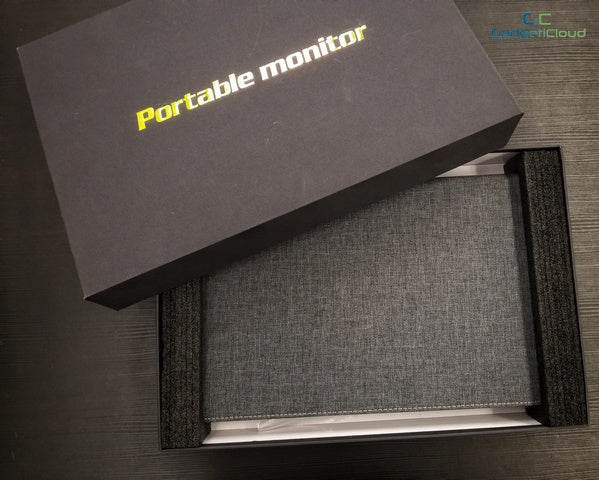
當我們打開包裝箱,便會看見主角:Lexuma 15.6寸便携式顯示器。
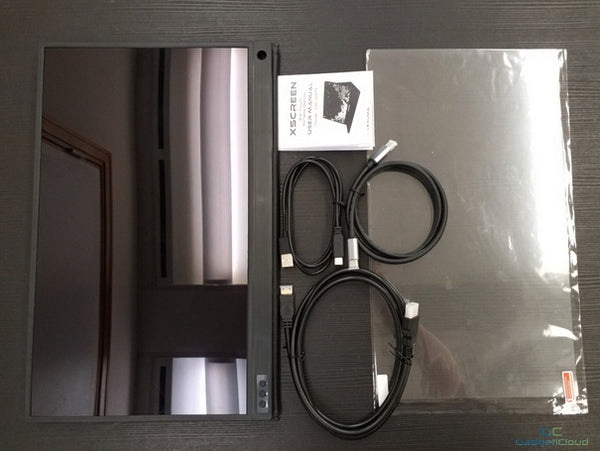
除了顯示器外,包裝内還有一條Mini HDMI線、一條Type-C to Type-C 線,還有一條Type-C to USB線供用家作不同的連接。另外,包裝還附送一張顯示器保護貼及一張説明書。
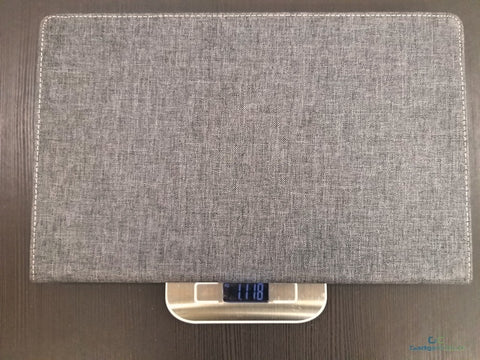
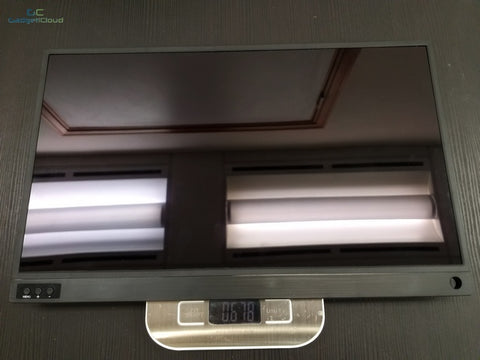
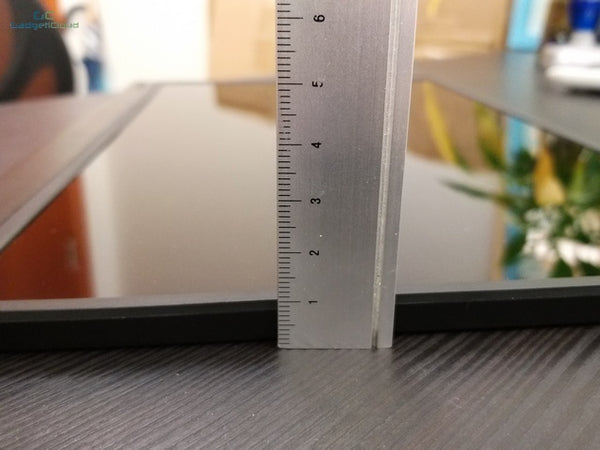
移除了保護殼後,這個便携式的外置顯示器只重0.68公斤,即使使用了保護殼,亦只是重約1公斤。

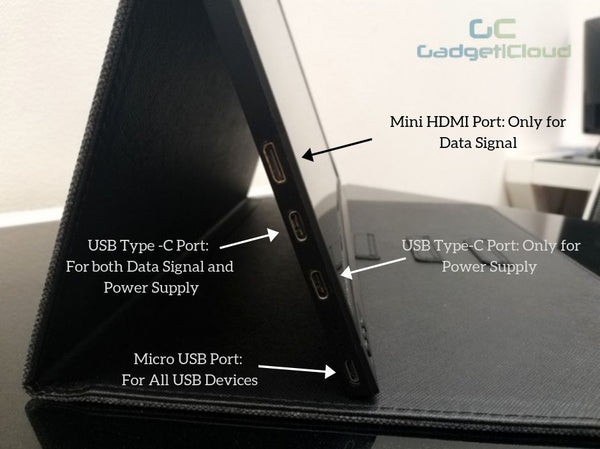
到底這個外置式顯示器之怎樣連接各項裝置呢?
連接電腦:
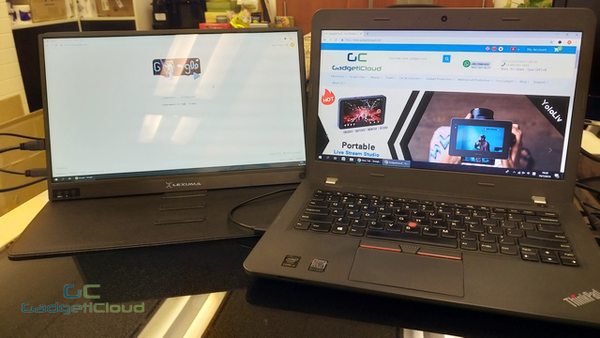
連接電腦一共有兩個方法
(1)如果你的電腦沒有USB Type-C 傳輸口......
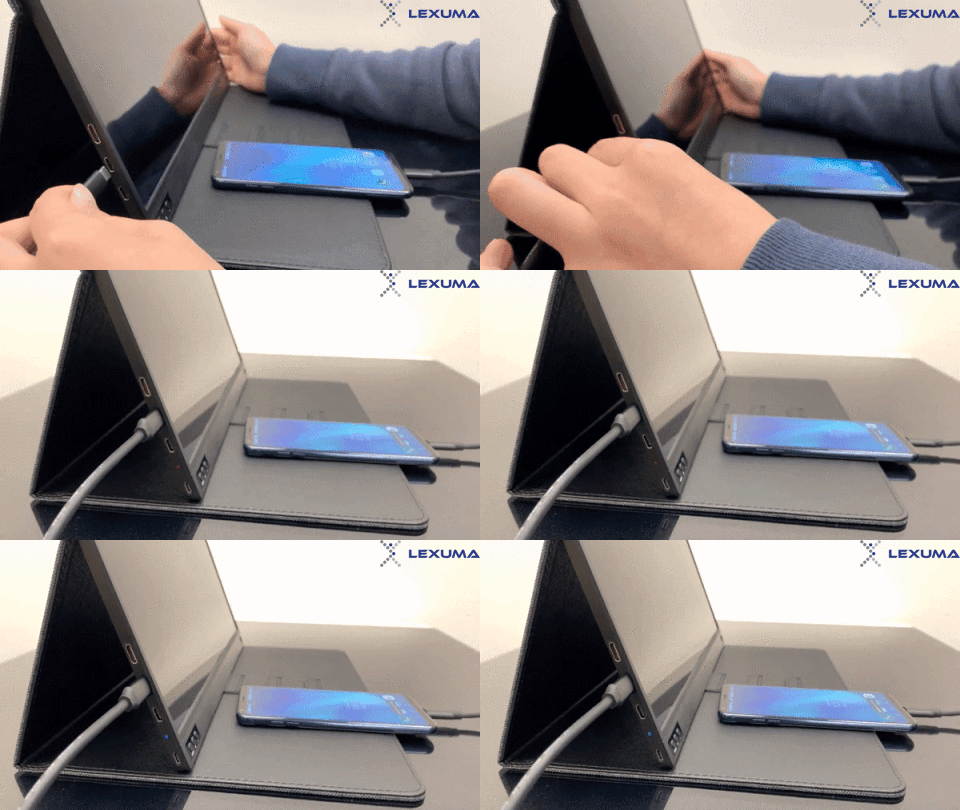
在你連接你的電腦之前,你需要準備一條HDMI線及一條Type-C線去完成你的連接。因爲這個便携式顯示器沒有内置電池,所以我們需要用Type-C線連接電源去啓動這個便携式顯示器。你可以從你的電腦、電話或行動電源提供電源給Lexuma XScreen。在使用HDMI線連接影像後,你還需要用Type-C線連接額外的電源(插入第二個Type-C連接口)方可供電。其後,你便可以看見你電腦的熒幕在Lexuma XScreen 上展示,更多的顯示設定可以使用電腦作更改。
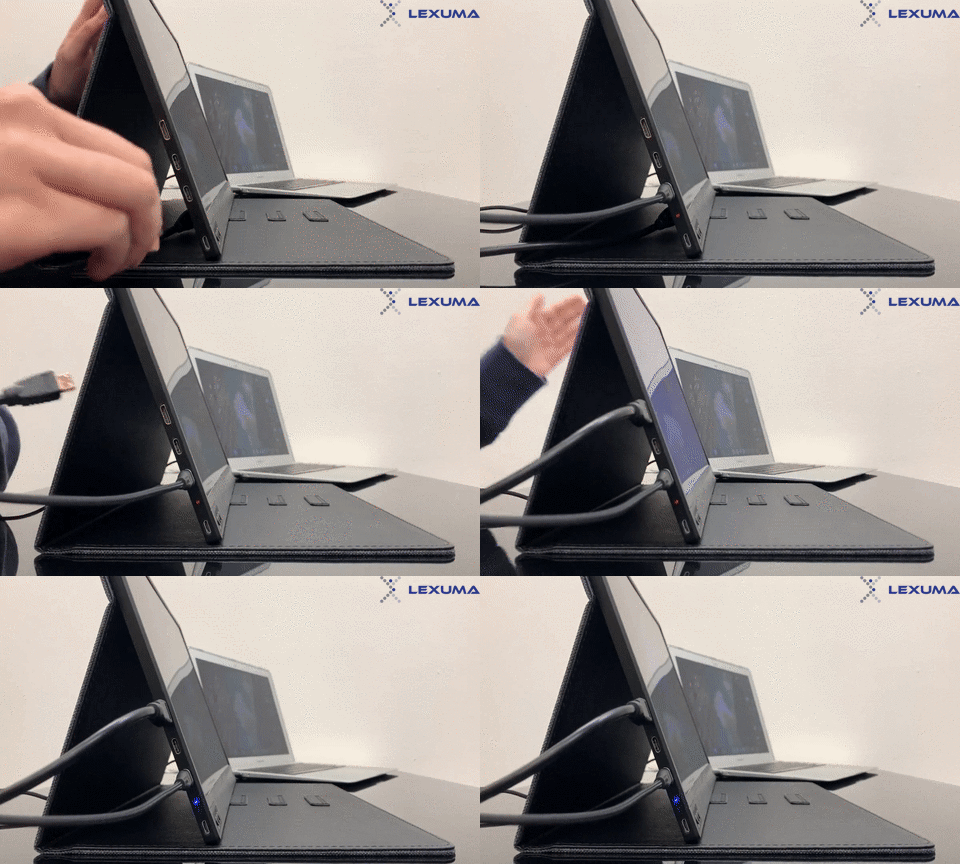
如果你只是連接了電源,旁邊的LED指示燈會顯示紅色;如果電源及影像顯示均連接成功,LED指示燈會顯示藍色。
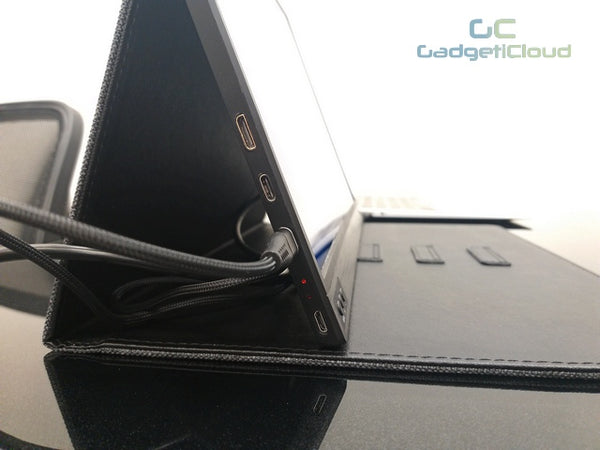

(2) 如果你的電腦擁有Type-C傳輸口...
如果你的電腦有Type-C的傳輸口,你只需要一條Type-C線便可以同時連接電源以及影像傳輸(請確保你使用正確的連接口,若不清楚哪一個連接口才是正確,可以回到上文介紹連接口的内容)。如果成功連接,LED指示燈會顯示藍色。
在連接方面,有幾點需要留意:
- 雖然Lexuam XScreen有輕觸式顯示器,但只限於Type-C的影像連接才可以啓動。換言之,如果你的電腦是需要使用HDMI作連接,輕觸式顯示器的功能便不可以使用。
- 即使你的電腦擁有Type-C連接口,但你亦需要留意你的電腦是否支援Type-C影像輸出。如果你的電腦不支援Type-C影像輸出,那麽你便需要額外使用HDMI連接影像。
連接智能電話:
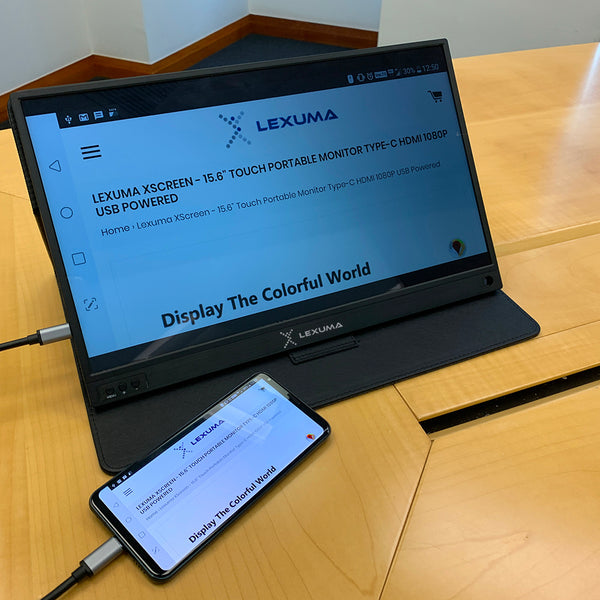
只需要使用一條Type-C連接線便可以鏈接電話與XScreen 便携式顯示器。你的電話會直接供電給XScreen,你不需要額外連接行動電源。成功連接後,需要等待幾秒,你的電話顯示器便會顯示在XScreen便携式顯示器上。由於電話的影像傳輸是透過Type-C傳送,因此輕觸式顯示器的功能亦可以啓動。你便可以直接在XScreen上控制你的電話操作。
連接遊戲設備:
This time I will demonstrate the connection to Switch to XSCREEN. I believe everyone knows SwitchmonitorSymatic, more suitable for one person. But when you need to play with your friends, you need a bigger onemonitorEssence Therefore, you can connect to Switch to XSCREEN, and you can have a largermonitorEssence You can successfully connect to just USB Type-C.
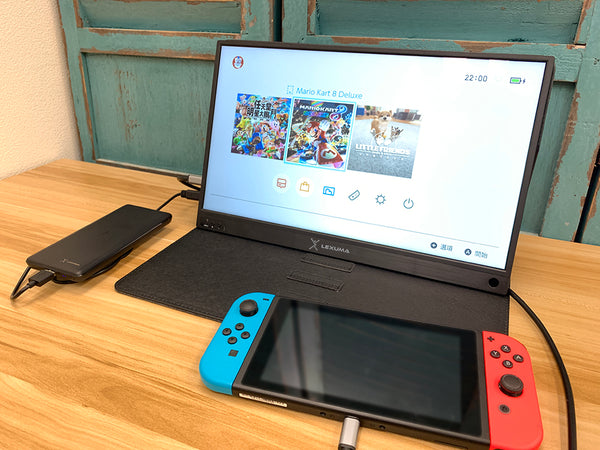
You can also connect your PS3/4, Xbox, etc.Gaming equipment, but you need to pay attention to most of the game devices that cannot output electricity. Therefore, you need to prepare for the power supply for power supply.
- How to adjust the volume:
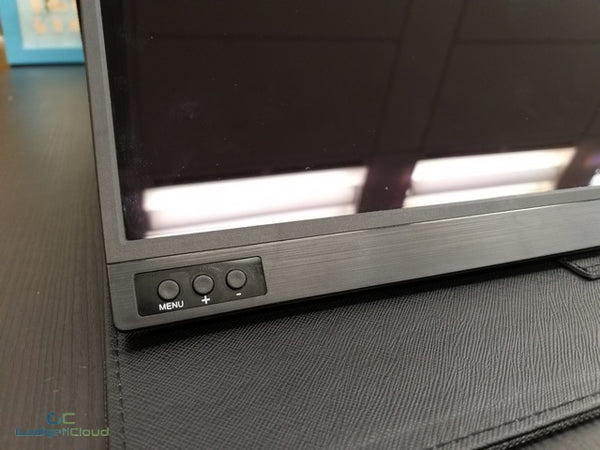
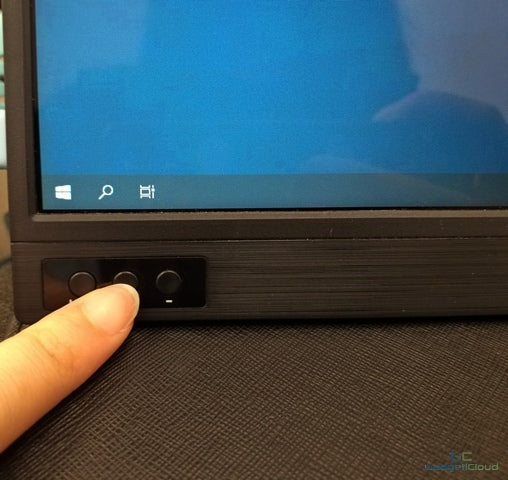
XScreen has a built -in speaker. When the volume of the tuning horn, you just need to pressmonitorThe '-' key in the lower left corner, you will see the volume display inmonitorsuperior. Then, you can use '+' or '-‘key to make the tuning volume.
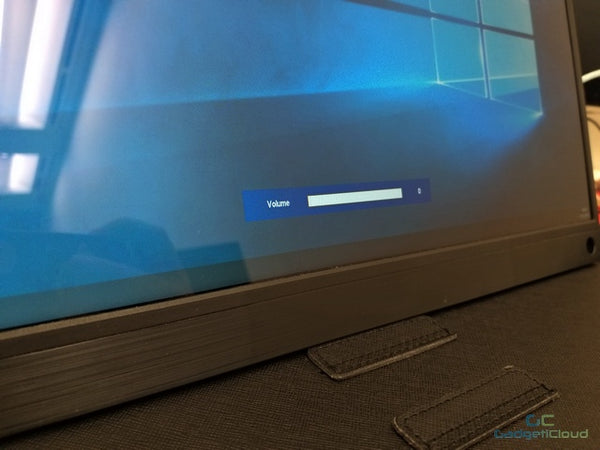
You can also adjust the volume volume through the successful device. If you don't want to use the built -in speaker of XSCREEN, you can choose the speaker you need on your computer.
It should be noted that your speaker can no longer be mute and starts to reduce the volume of the teaching volume.
- Why is thismonitorCan it be called 'portable'?
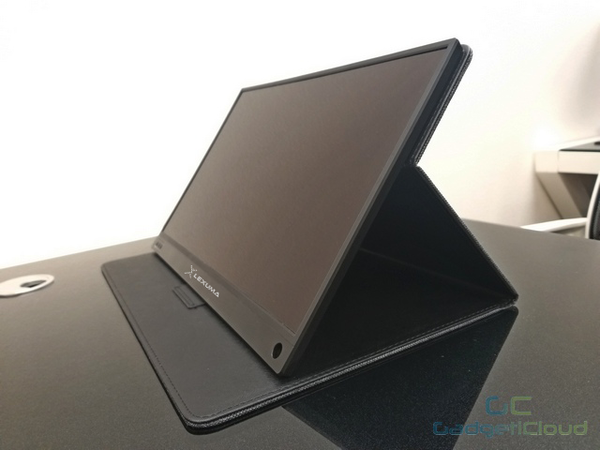
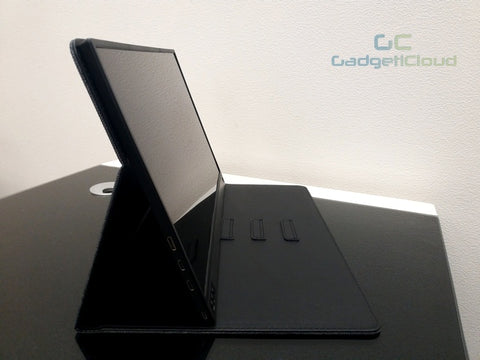
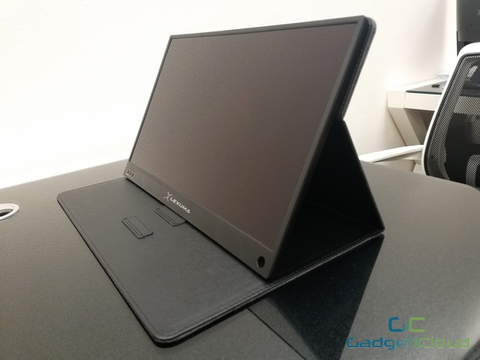
thismonitorThe protective cover can be used as a bracket, and you don't need to carry additional brackets as support XSCREEN. You can also choose three different angles to use XSCREEN. In addition, this portable external externalmonitorXScreen is only weighing 0.68kg, and it is very reasonable for being carried to go out.
 |
 |
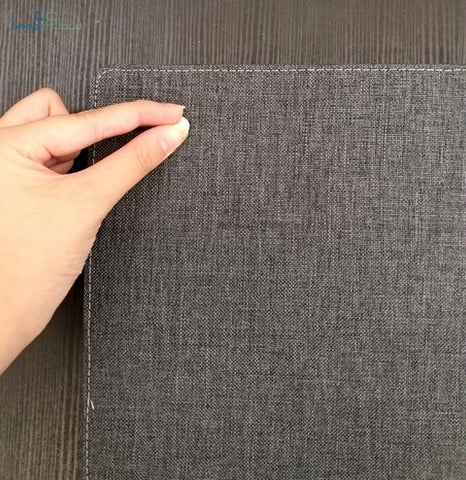
You can also remove the protective cover, the method is very simple.
 |
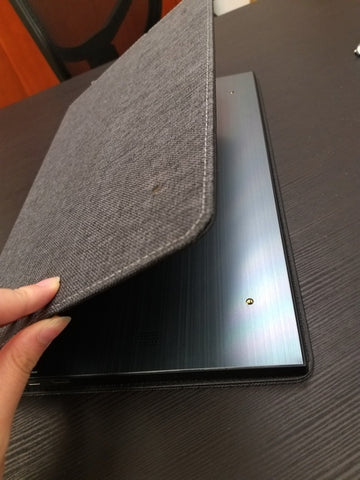 |
ReversemonitorOn the back, you can see two small screws. You only need to twist lightly, you can remove the protective cover.
All in all, Lexuma XScreen is very light. All the lines you need to use are also provided, so you only need to prepare the appropriate device to connect. So this portablemonitorVery worth buying!
This portablemonitorApplicable to the following devices:
| computer: |
|
| smartphone: |
|
| Game equipment: |
|